
Edit a Basic Tier Rule
The Loyalty platform allows you to edit the properties of an existing Basic Tier Rule.
To edit an existing Basic Tier Rule:
-
Select Rules from the top navigation bar, then select Tier Schemes from the side navigation menu. The Tier Schemes screen is displayed.
-
Search for and select the desired Tier Scheme (see
-
Select the Base Rules tab. The platform displays all the Tier Tables defined in this Tier Scheme.
-
Optionally search for the desired Tier Table (see
-
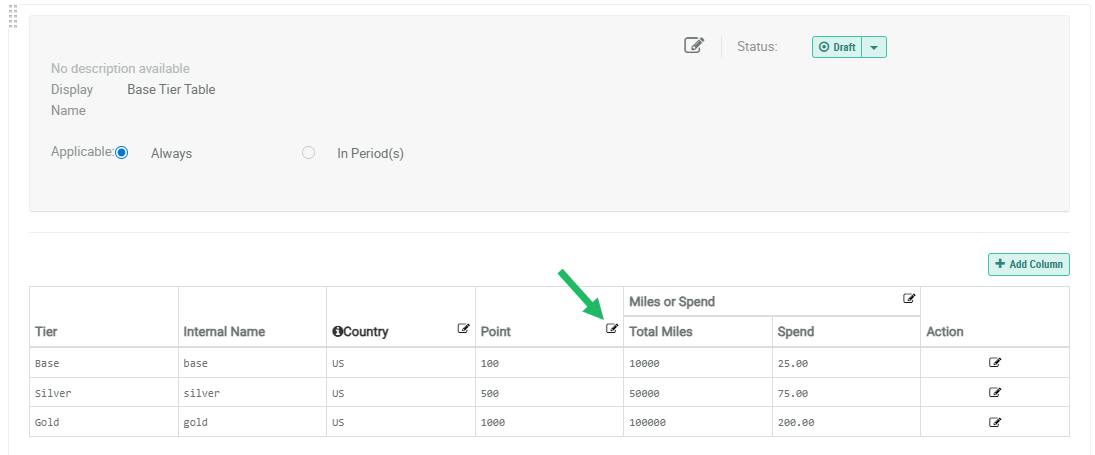
Optionally, to edit the Basic Tier Rule properties, click the Edit icon next to the column header of the column you want to edit. The Edit Tier Column pop-up window is displayed.
-
Make the desired edits to the column properties:
-
Metric: For a Metric column, you can change the Internal Name and the selected Metric. You can't change its Display Name.
-
Metric Group: For a Metric Group, you can change the Display Name and Internal Name, and you can add, edit, remove, or rearrange the Metric columns within the Group.
-
Expression: For an Expression column, you can change the Display Name and Internal Name, and you can edit the Groovy expression.
-
Note: You can't change a column's type once the column is saved. For example, you can't change a Metric column to an Expression column.
-
Click Save.
-
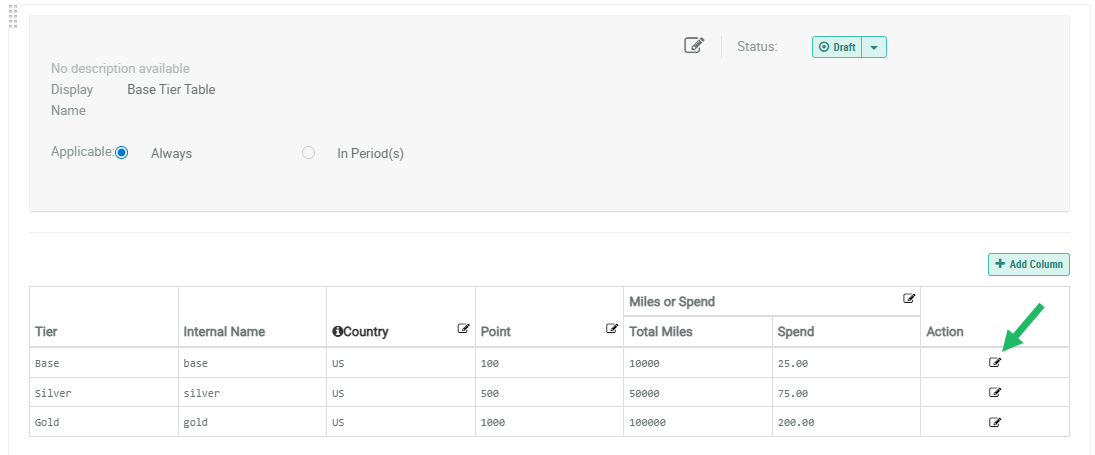
Optionally, to edit the Basic Tier Rule values, click the Edit icon within the Action column for a Tier. The Edit Tier Column Value pop-up window is displayed. If your Tier Table has multiple columns, this pop-up window displays the values for every column, in the order in which they appear in the Tier Table.
-
Make the desired edits to the value (or values) for this Tier. From this pop-up window, you can also rearrange the order in which the columns appear in the Tier Table. Click and hold on the "handle" next to a column, then drag-and-drop it in its desired position.
-
Click Save.
